Search the manual:

Overview Quick start Download Manual How to buy FAQ Contact Us
OZEKI NG SMS Gateway - Product Guide

RS232 Data Cable Contents | SearchUSB Cable

Home > Product Manual > SMS technology > GSM SMS > RS232 Data Cable > Installing the standard modem

SMS Gateway SMS Gateway Home

  Product Manual
  Introduction
  SMS technology
  Connection types
  Basic concepts
  GSM SMS
  RS232 Data Cable
  Installing the standard modem
  USB Cable
  Bluetooth (BT)
  Infrared (IR)
  GPRS SMS
  IP SMS
  USSD
  GSM modem vs IP SMS
  Installation Guide
  User Guide
  Developers Guide
  Examples and Solutions
  Appendix
  FAQ
  Feature list
  Commercial Information
  Search


Contact Us!
If you wish to get further information, do not hesitate to contact us!

E-mail: info@ozekisms.com

If you have a technical question, please submit a support request on-line.


Callcenter developers
If you are working on telephone solutions, please check out the Ozeki VoIP SIP SDK.
It can be used to create:

Webphone solutions:
- Adobe Flash video phone
- Silverlight video phone
- Web to web calls
- Web to VoIP calls

Custom SIP clients:
- Silverlight SIP VoIP client
- Flash SIP VoIP client
- C# .net SIP VoIP client
- ASP .net SIP VoIP client
- Web based SIP VoIP client

Custom VoIP solutions:
- VoIP SIP softphones
- VoIP call center clients
- VoIP IVR systems
- VoIP predictive dialer systems
- VoIP auto dialer systems
- VoIP call assistant
- VoIP call recording systems
- VoIP intercom solutions

INSTALLING THE STANDARD MODEM


This page gives you information on how you can set up your external GSM Modem as a standard modem in Windows XP. This is necessary if you wish to use Ozeki NG - SMS Gateway for MMS Messaging. Please follow these steps.

1. As a first step, you need to open your Control panel. To do this, click on Start, and select the Settings/ControlPanel menu item (Figure 1).

2. In the Control Panel Window, click on 'Add Hardware', and then in the 'Add Hardware Wizard'form, click on the 'Next' button (Figure 1).
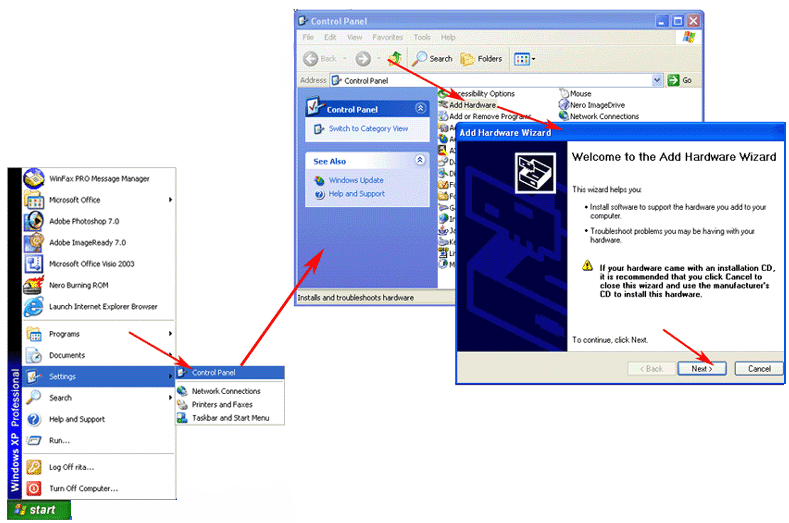

Figure 1 - Opening the Control Panel

3. In the 'Add Hardware Wizard' window, select the answer 'Yes', and click on the 'Next' button (Figure 2).
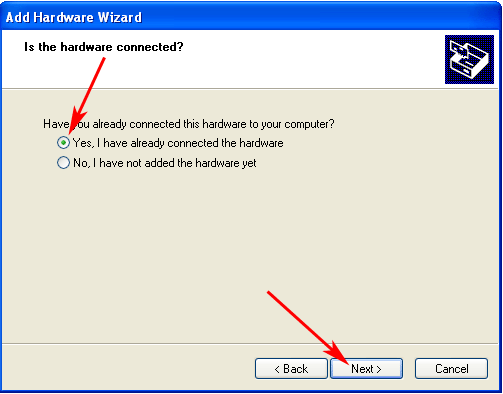


Figure 2 - Add Hardware Wizard form 1

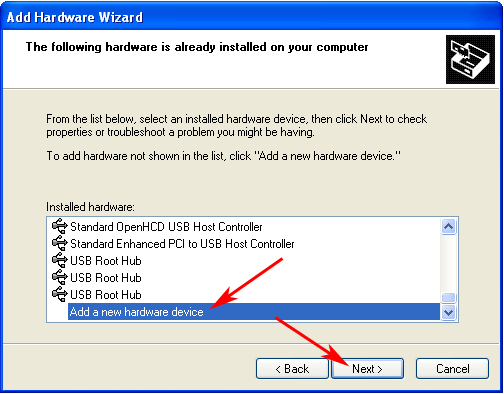
4. As a the next step, select the 'Add a new hardware device' item from the 'Installed hardware' listbox and then click 'Next' (Figure 3).


Figure 3 - Add Hardware Wizard form 2

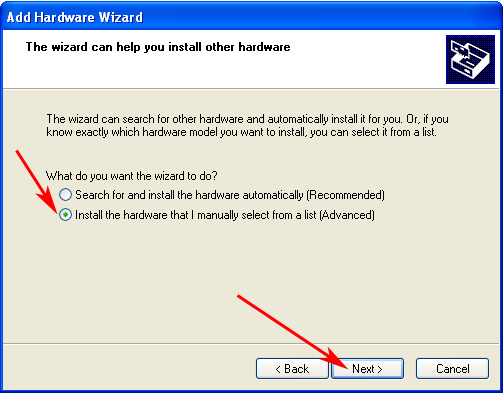
5. Select the answer 'Install the hardware that I manually select from a list', and click on 'Next' (Figure 4).


Figure 4 - Add Hardware Wizard form 3

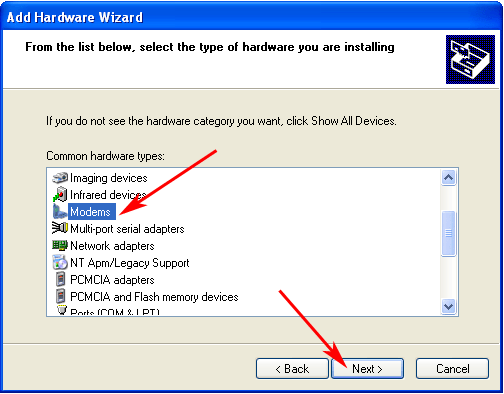
6. Select 'Modems', and click on 'Next' (Figure 5).


Figure 5 - Add Hardware Wizard form 4

7. Place a checkmark in the 'Don't detect my modem, I will select it from a list' checkbox, and click 'Next' (Figure 6).


Figure 6 - Add Hardware Wizard form 5

8. The following step is to select the 'Standard 56000 bps Modem', and click on 'Next' (Figure 7).


Figure 7 - Add Hardware Wizard form 6

9. Please choose 'COM1', and click the 'Next' button (Figure 8).


Figure 8 - Add Hardware Wizard form 7

Then the installation procedure is complete.


Dig deeper!
People who read this also read...


Next page: USB Cable
Copyright © 2000 - 2013 Ozeki Informatics Ltd.
All rights reserved

Software PBX for Windows | VoIP SDK   |   Legal information   |   Privacy policy   |   Terms of use
Please, address your inquiries to info@ozekisms.com