

 Quick start
  Download
  Manual
  How to buy
  Contact
  Sign in
 Installing the standard modem
This page gives you information on how you can set up your external GSM Modem as a standard modem in Windows XP. This is necessary if you wish to use Ozeki NG - SMS Gateway for MMS Messaging. Please follow these steps.
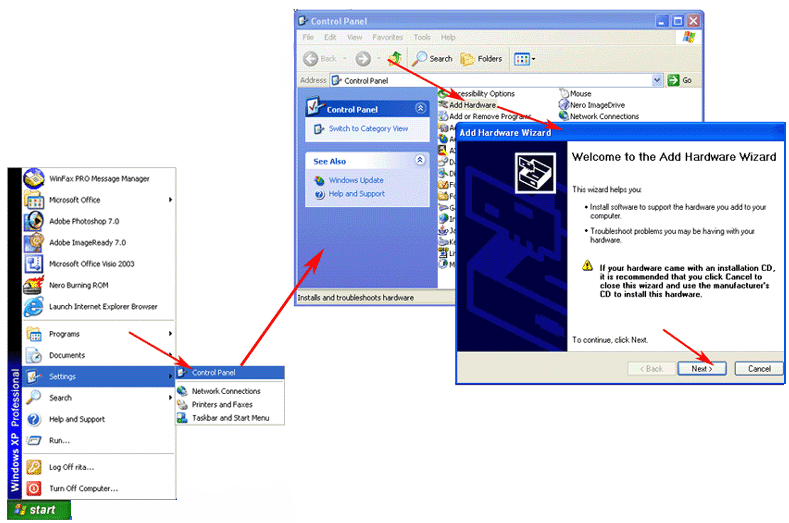
1. As a first step, you need to open your Control panel. To do this, click on Start, and select the Settings/ControlPanel menu item (Figure 1).
2. In the Control Panel Window, click on 'Add Hardware', and then in the 'Add Hardware Wizard'form, click on the 'Next' button (Figure 1).
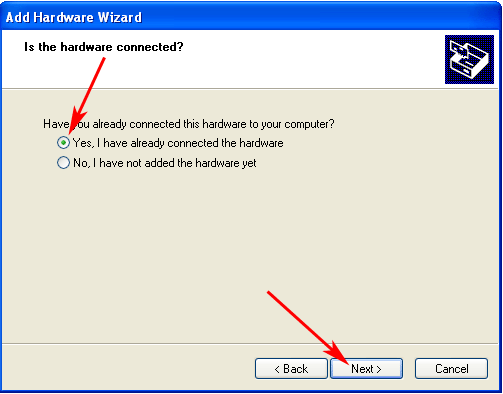
3. In the 'Add Hardware Wizard' window, select the answer 'Yes', and click on the 'Next' button (Figure 2).
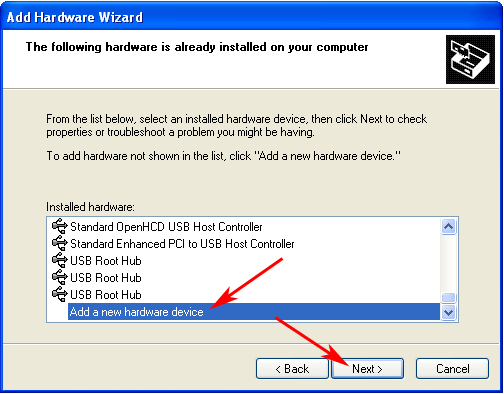
4. As a the next step, select the 'Add a new hardware device' item from the 'Installed hardware' listbox and then click 'Next' (Figure 3).
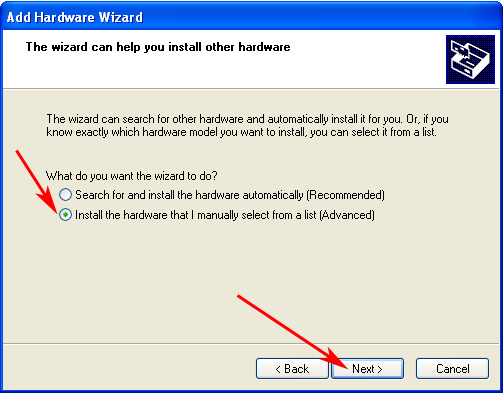
5. Select the answer 'Install the hardware that I manually select from a list', and click on 'Next' (Figure 4).
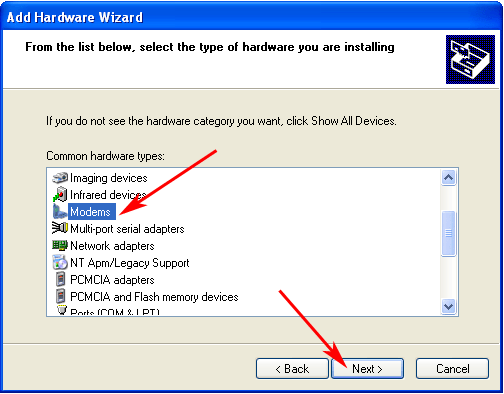
6. Select 'Modems', and click on 'Next' (Figure 5).
7. Place a checkmark in the 'Don't detect my modem, I will select it from a list' checkbox, and click 'Next' (Figure 6).
8. The following step is to select the 'Standard 56000 bps Modem', and click on 'Next' (Figure 7).
Figure 7 - Add Hardware Wizard form 6
9. Please choose 'COM1', and click the 'Next' button (Figure 8).
Then the installation procedure is complete.
More information