Search the manual:

Overview Quick start Download Manual How to buy FAQ Contact Us
OZEKI NG SMS Gateway - Product Guide

GSM modem listing Contents | SearchL - Error codes

Home > Product Manual > Appendix > K - GSM modems, phones > Wavecom power

SMS Gateway SMS Gateway Home

  Product Manual
  Introduction
  SMS technology
  Installation Guide
  User Guide
  Developers Guide
  Examples and Solutions
  Appendix
  A - Terms and definitions
  B - References
  C - Message types
  D - Database connection strings
  E - SMS alphabet
  F - GSM error codes
  G - SMSC settings
  H - MMSC settings
  I - GSM operators
  J - SMPP providers
  K - GSM modems, phones
  GSM modem listing
  Wavecom power
  L - Error codes
  M - Country codes
  O - SMPP Error codes
  FAQ
  Feature list
  Commercial Information
  Search


Common question - Configuration

How can I configure a GSM Modem in Ozeki NG SMS Gateway?

To setup a GSM modem, first you have to attach it to your PC. The next step is to find out which serial port (COM Port) is your GSM modem attached to. After you have this information install the GSM modem service provider connection.

(Click here to read about GSM modem installation for SMS messaging...)

Topic: GSM Modem


Common question - Hadware vendor

I am a hardware vendor. Can I add my modems to the list?

Ozeki is a leading supplier of corporate SMS solutions. Listing your devices on this page can bring you customers. If you think your device is suitable for SMS messaging, and you want to add it to the list let us know!

(Click here to find out how to sign up for our free of charge tesing program...)

Topic: Hardware vendor


Contact Us!
If you wish to get further information, do not hesitate to contact us!

E-mail: info@ozekisms.com

If you have a technical question, please submit a support request on-line.

Power supply options

When you order a Wavecom or Sierra modem from us, you should tell us which adapter you need. You can select the adapter that connects your modem to the PC power supply and you can select the adapter that connects you modem to the standard 220V wall socket.

Option "A" - PC power supply
You can connect your Wavecom modem directly to the PC power supply. You can take a look at the adapter cable on Figure 1.
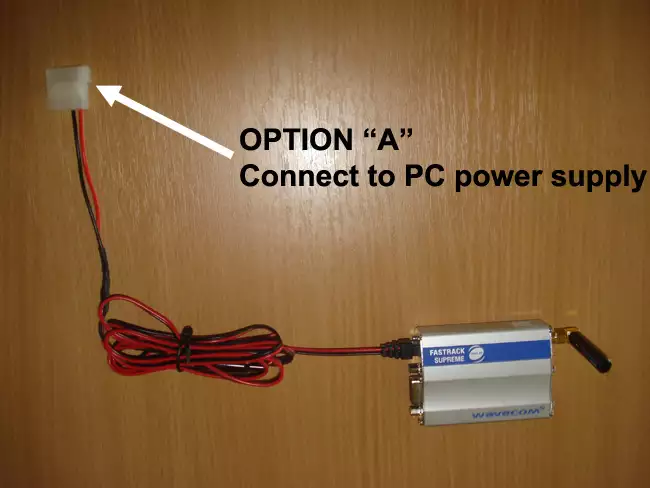

Figure 1 - PC power supply adpater cable

Option "B" - Wall socket
You can connect your Wavecom modem to the standard 220V wall socket with the adapter shown on Figure 2.
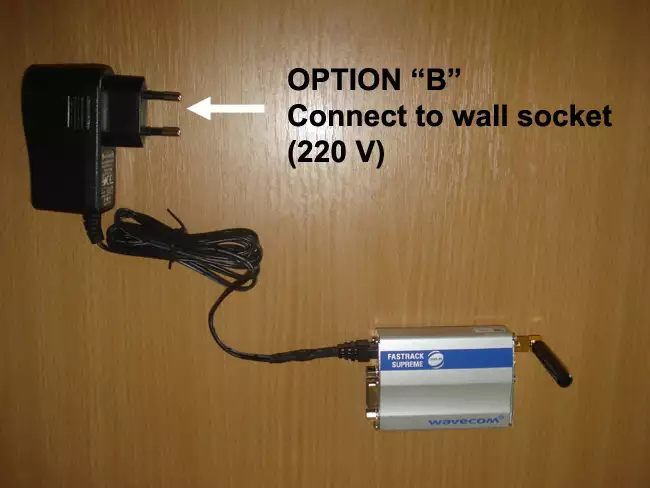

Figure 2 - Wall socket adapter


Next page: L - Error codes
Source: http://www.ozekisms.com/index.php?owpn=654, Word count: 2041
Copyright © 2000 - 2010 Ozeki Informatics Ltd.
All rights reserved

Legal information        |         Privacy policy        |         Terms of use
Please, address your inquiries to info@ozekisms.com