Search the manual:

Overview Quick start Download Manual How to buy FAQ Contact Us
OZEKI NG SMS Gateway - Product Guide

Schedule SMS sending Contents | SearchSend message to contact groups

Home > Product Manual > User Guide > User Interface > Send message to multiple recipients

SMS Gateway SMS Gateway Home

  Product Manual
  Introduction
  SMS technology
  Installation Guide
  User Guide
  Quick Start Guide
  User Interface
  Menu
  Toolbar
  Service Provider Connectivity
  Users and applications
  Ozeki SMS Client
  Sound and Alerts
  Schedule SMS sending
  Send message to multiple recipients
  Send message to contact groups
  Configuration
  Client software
  Administrator's guide
  Developers Guide
  Examples and Solutions
  Appendix
  FAQ
  Feature list
  Commercial Information
  Search


Contact Us!
If you wish to get further information, do not hesitate to contact us!

E-mail: info@ozekisms.com

If you have a technical question, please submit a support request on-line.


Callcenter developers
If you are working on telephone solutions, please check out the Ozeki VoIP SIP SDK.
It can be used to create:

Webphone solutions:
- Adobe Flash video phone
- Silverlight video phone
- Web to web calls
- Web to VoIP calls

Custom SIP clients:
- Silverlight SIP VoIP client
- Flash SIP VoIP client
- C# .net SIP VoIP client
- ASP .net SIP VoIP client
- Web based SIP VoIP client

Custom VoIP solutions:
- VoIP SIP softphones
- VoIP call center clients
- VoIP IVR systems
- VoIP predictive dialer systems
- VoIP auto dialer systems
- VoIP call assistant
- VoIP call recording systems
- VoIP intercom solutions

How to send the same SMS text message to multiple recipients


On this page you can find a brief overview about how you can send the same SMS text message to more than one recipient using one of the various sending methods.

Web GUI

In case of Web GUI you can send SMS text messages to multiple recipients if you enter the recipients separated by a semicolon on Compose a text message form (Figure 1).
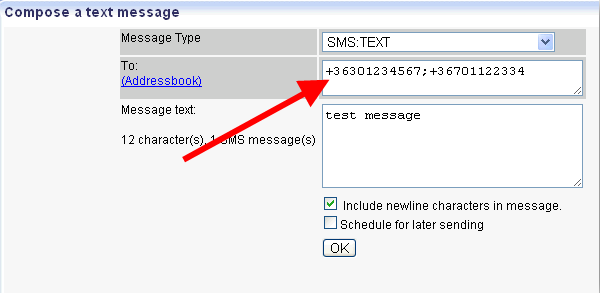

Figure 1 - Separate recipients with semicolon

On Figure 2 you can see that Ozeki NG SMS Gateway has sent out the message to the recipients.
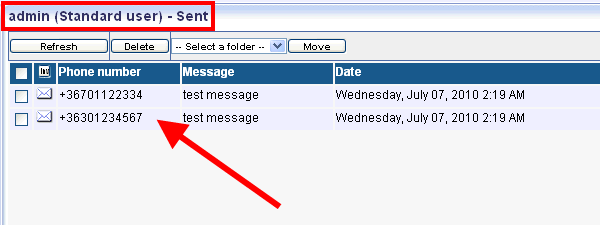

Figure 2 - Sent messages in Ozeki NG SMS Gateway

Excel Client

With Excel client SMS messages also can be sent to more than one recipients. Recipients are in column A and they need to be separated with semicolons. Column B includes text messages (Figure 3).
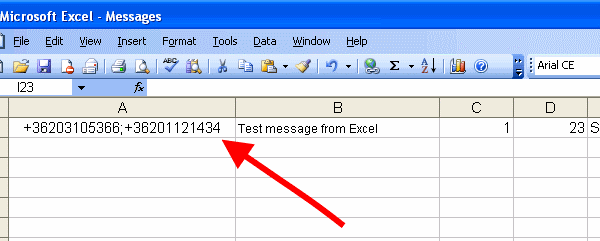

Figure 3 - Separate recipients with semicolons in Excel sheet

On Figure 4 you can see that the message is sent to the recipients by Ozeki NG SMS Gateway (Figure 4).
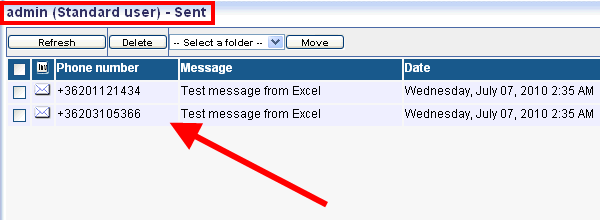

Figure 4 - Sent messages Ozeki NG SMS Gateway

Ozeki SMS client

To send SMS text messages from Ozeki SMS client specify the recipient in To field. In case of multiple recipients you need to separate them with semicolons (Figure 5).
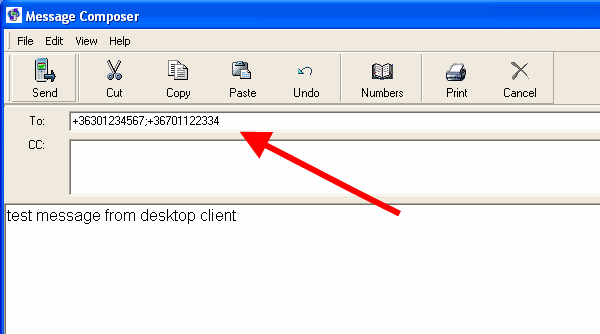

Figure 5 - Separate recipients with semicolon

Ozeki NG SMS Gateway has sent out the message to the specified recipients (Figure 6).
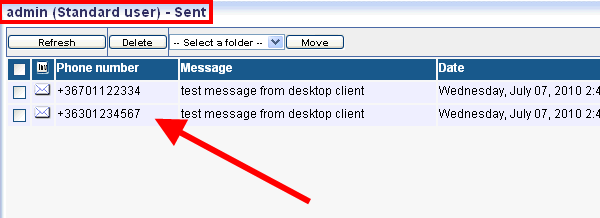

Figure 6 - Sent messages in Ozeki NG SMS Gateway

Database user

In case of Database user you need to specify recipients separated with semicolons in the receiver field to be able to send the message to multiple recipients (Figure 7).
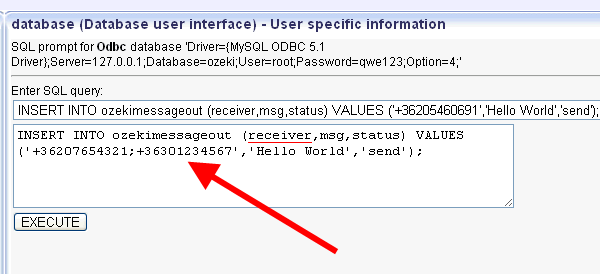

Figure 7 - Separate recipients with semicolon

On Figure 8 you can see that Ozeki NG SMS Gateway has sent out the message to the recipients.
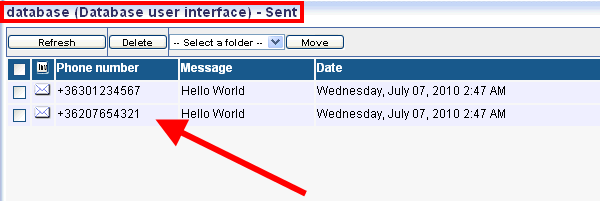

Figure 8 - Sent messages in Ozeki NG SMS Gateway

HTTP API

If you use HTTP API to send SMS text messages it is also possible to send the same message to multiple recipient in a way that after recipient= section of the script you enter the recipients separated with semicolons.

http://127.0.0.1:9501/api?action=sendmessage&username=admin&password=abc123
&recipient=06203105366;06301234567&messagetype=SMS:TEXT&messagedata=Hello+World


Here you can see the recipients separated by semicolons:
recipient=06203105366;06301234567

E-mail user

In case of Outlook, messages are sent via a built-in SMTP server. If you would like to send an SMS text message to multiple recipient first you need to specify the recipient in To field and all further recipients need to be specified in Cc field (Figure 9).
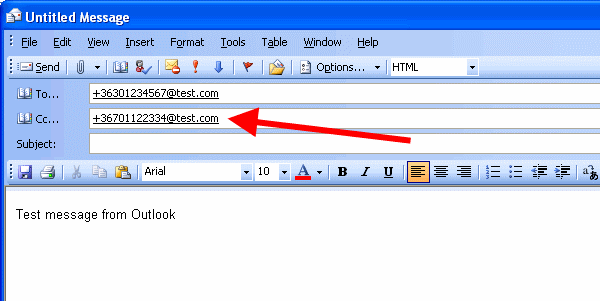

Figure 9 - Copy the message to multiple recipients

On Figure 10 you can see that Ozeki NG SMS Gateway has sent out the message to the specified recipients.
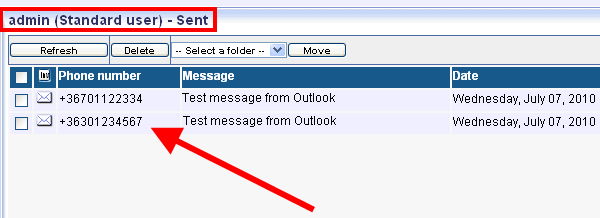

Figure 10 - Sent messages in Ozeki NG SMS Gateway

Dig deeper!
People who read this also read...


Database user
HTTP client user
Excel SMS client
Addressbook
Addressbook types
User interface


Next page: Send message to contact groups
Copyright © 2000 - 2013 Ozeki Informatics Ltd.
All rights reserved

Software PBX for Windows | VoIP SDK   |   Legal information   |   Privacy policy   |   Terms of use
Please, address your inquiries to info@ozekisms.com