Search the manual:

Overview Quick start Download Manual How to buy FAQ Contact Us
OZEKI NG SMS Gateway - Product Guide

O - SMPP Error codes Contents | SearchFAQ

Home > Product Manual > Appendix > W - Wireshark Capture

SMS Gateway SMS Gateway Home

  Product Manual
  Introduction
  SMS technology
  Installation Guide
  User Guide
  Developers Guide
  Examples and Solutions
  Appendix
  A - Terms and definitions
  B - References
  C - Message types
  D - Database connection strings
  E - SMS alphabet
  F - GSM error codes
  G - SMSC settings
  H - MMSC settings
  I - GSM operators
  J - SMPP providers
  K - GSM modems, phones
  L - Error codes
  M - Country codes
  O - SMPP Error codes
  W - Wireshark Capture
  FAQ
  Feature list
  Commercial Information
  Search


Contact Us!
If you wish to get further information, do not hesitate to contact us!

E-mail: info@ozekisms.com

If you have a technical question, please submit a support request on-line.


Callcenter developers
If you are working on telephone solutions, please check out the Ozeki VoIP SIP SDK.
It can be used to create:

Webphone solutions:
- Adobe Flash video phone
- Silverlight video phone
- Web to web calls
- Web to VoIP calls

Custom SIP clients:
- Silverlight SIP VoIP client
- Flash SIP VoIP client
- C# .net SIP VoIP client
- ASP .net SIP VoIP client
- Web based SIP VoIP client

Custom VoIP solutions:
- VoIP SIP softphones
- VoIP call center clients
- VoIP IVR systems
- VoIP predictive dialer systems
- VoIP auto dialer systems
- VoIP call assistant
- VoIP call recording systems
- VoIP intercom solutions

How to capture network traffic with Wireshark


This guide explains how you can capture the network traffic with Wireshark. The information you get this way then please send us to info@ozekisms.com. Our technical engineers then can look into the files and help you overcome the experienced issues quickly.

With Wireshark you can save all the outgoing network packages via all network cards. First, please download Wireshark from http://www.wireshark.org/download.html, install and run it (Figure 1).
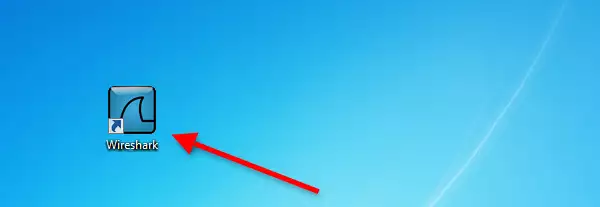

Figure 1 - Download Wireshark

As the next step select the network interface via which you wish to capture the network packages (Figure 2).
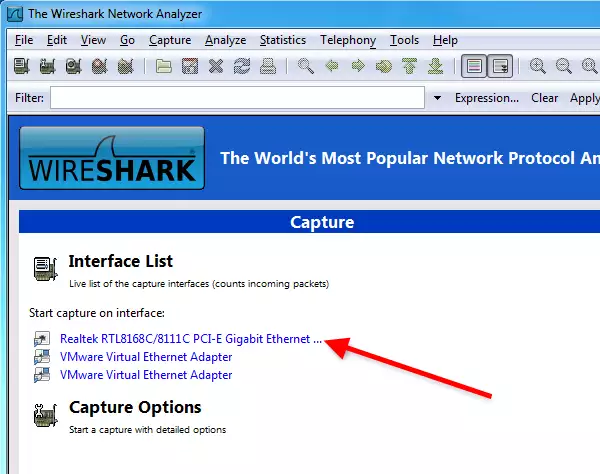

Figure 2 - Select the network interface

Start the capturing process (Figure 3).
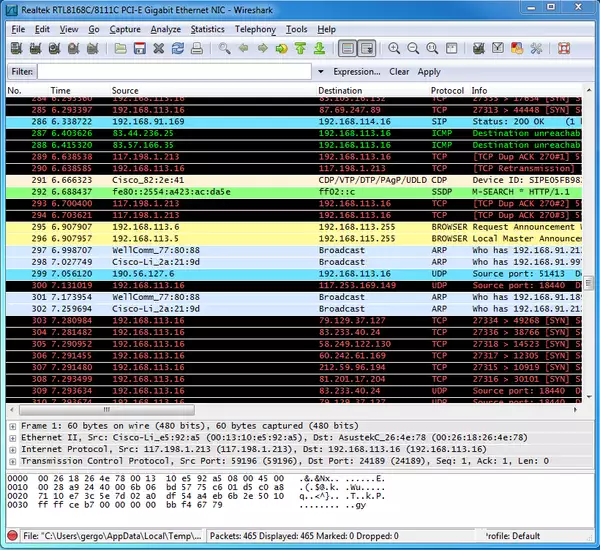

Figure 3 - Capturing

When you wish to stop capturing process, click on Stop button. Then click on Save at File menu (Figure 4).
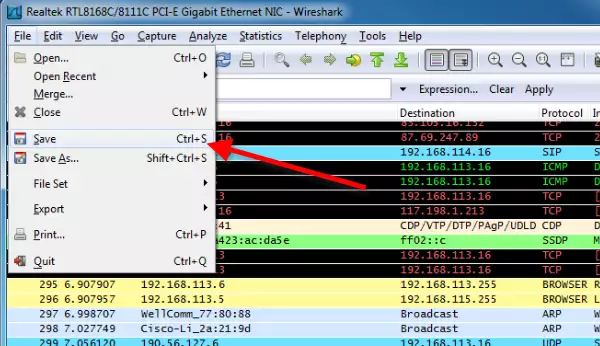

Figure 4 - Save captured data

Provide a name for the captured data, specify the place where you wish to save the file and click on Save (Figure 5).
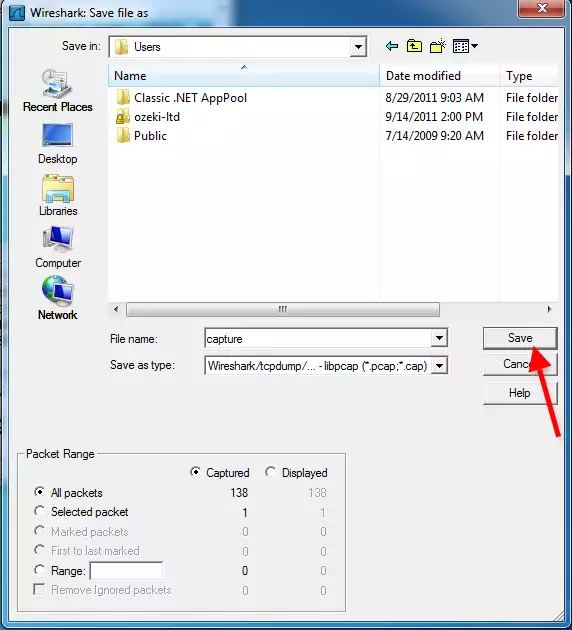

Figure 5 - Save captured data

Finally, send us the saved capture data to info@ozekisms.com (Figure 6). Our technical engineers will look into the captured data and respond you as soon as possible.


Figure 6 - Send us the captured data

Please send us the captured data to info@ozekisms.com!


Next page: FAQ
Copyright © 2000 - 2013 Ozeki Informatics Ltd.
All rights reserved

Software PBX for Windows | VoIP SDK   |   Legal information   |   Privacy policy   |   Terms of use
Please, address your inquiries to info@ozekisms.com