

 Quick start
  Download
  Manual
  How to buy
  Contact
  Sign in
 How to allow incoming connections
On this page you can find detailed information on how you can allow incoming connections at Windows Firewall. This is necessary to be able to receive MMS over MM7 protocol. Please follow the steps of this article to be able to use this solution properly.
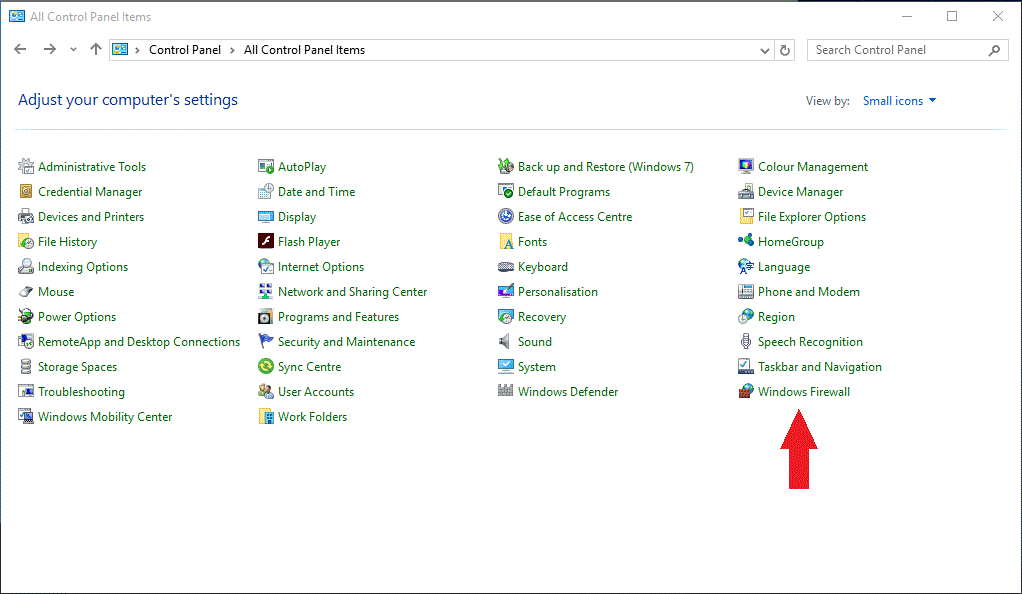
To allow incoming connections, first you need to go to Control Panel at Start menu and click on Windows Firewall icon (Figure 1).
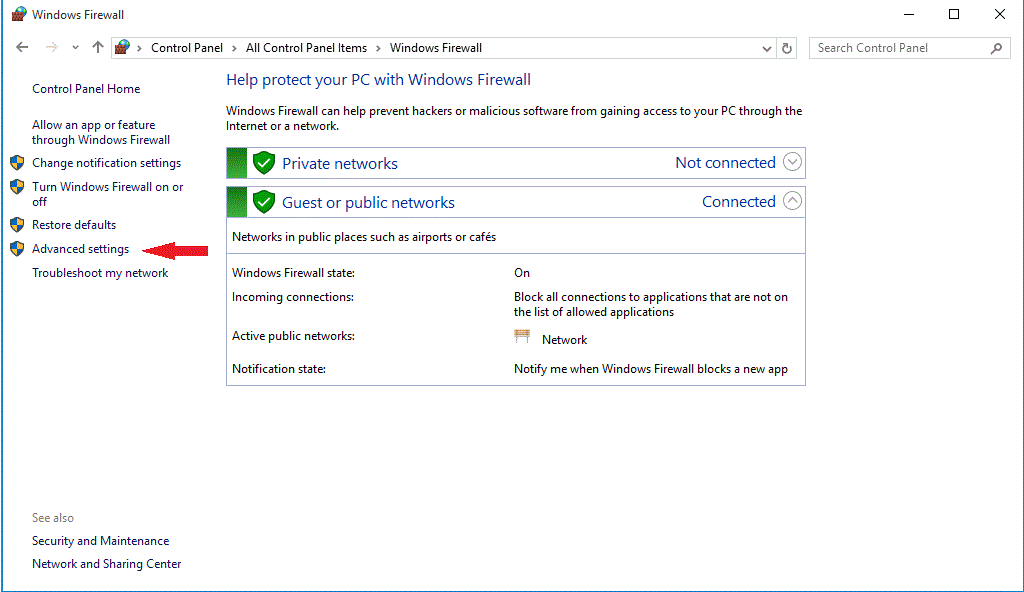
At Windows Firewall, select "Advanced Settings" (Figure 2).
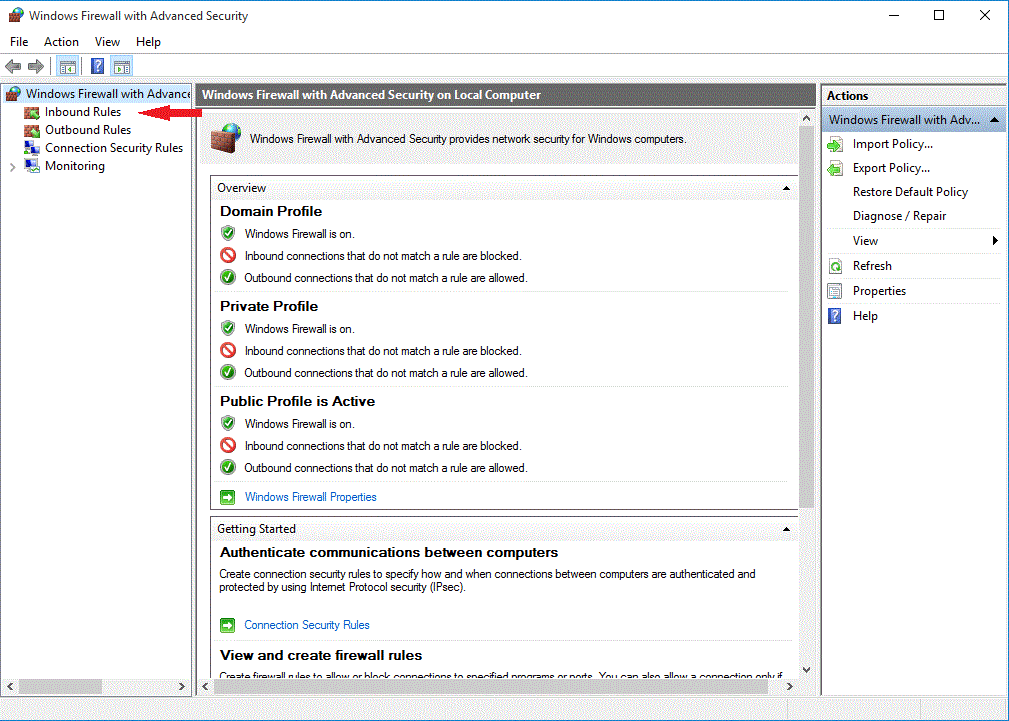
In the next page select "Inbound Rules"(Figure 3).
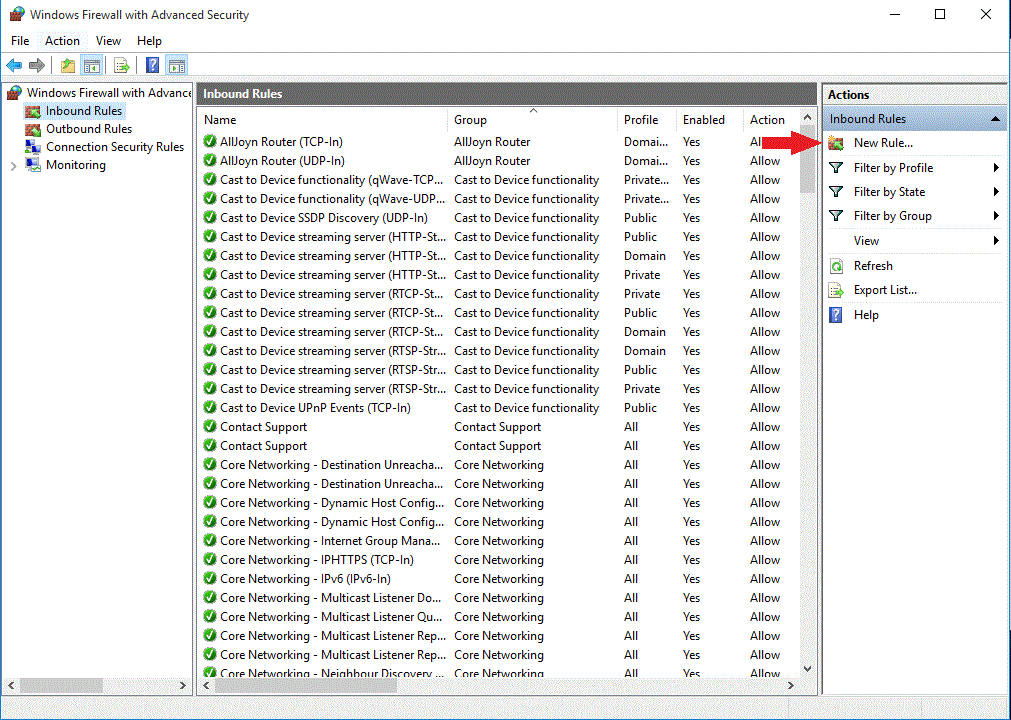
Now click to "New Rule..." button at right(Figure 4).
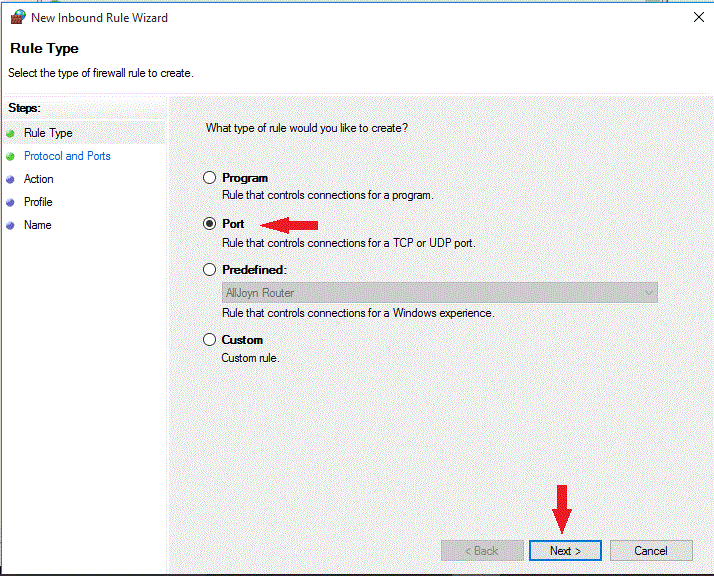
In the next dialog box select the "Port" radio button and then click to "Next" (Figure 5).
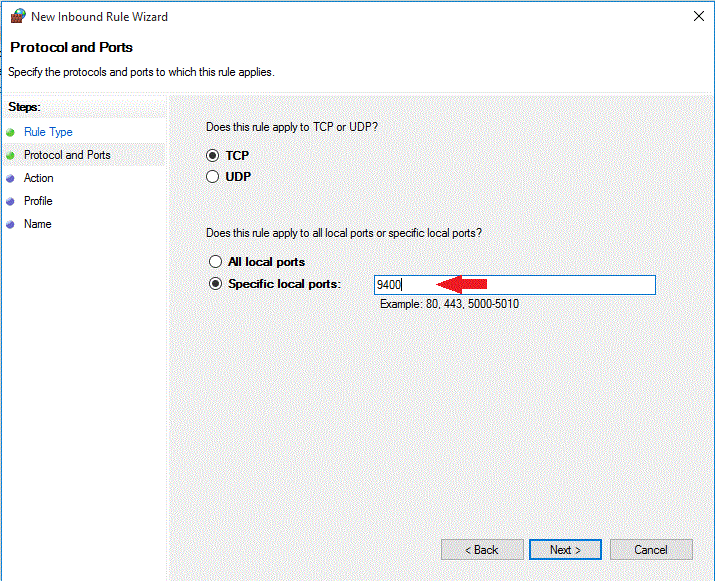
At the next page type in the "port number" (9400) what you want to enable and click to "Next" (Figure 6).
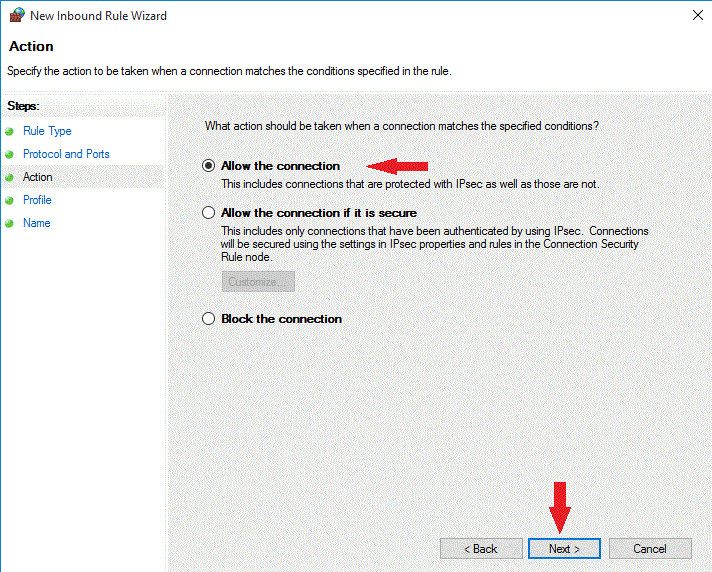
Leave the radio button on "Allow the connection" and click to "Next" (Figure 7).
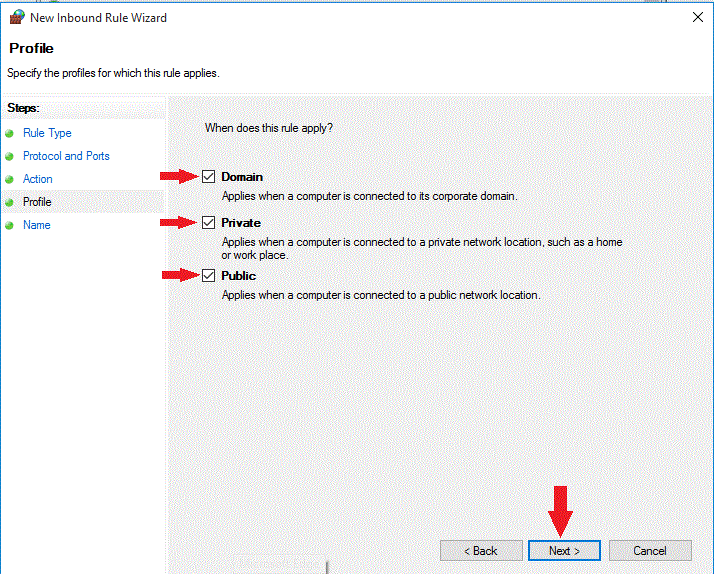
Leave all pipes in the boxes and click "Next" (Figure 8).
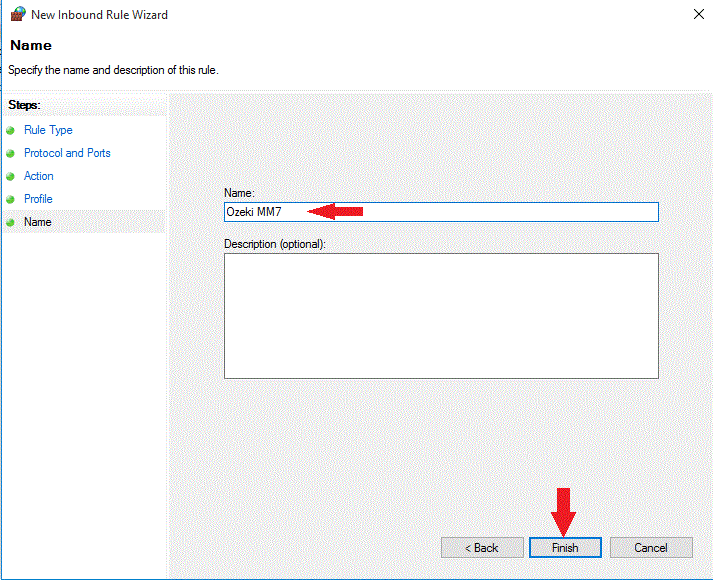
In the last page "Name the Rule" and click the "Finish" button (Figure 9).
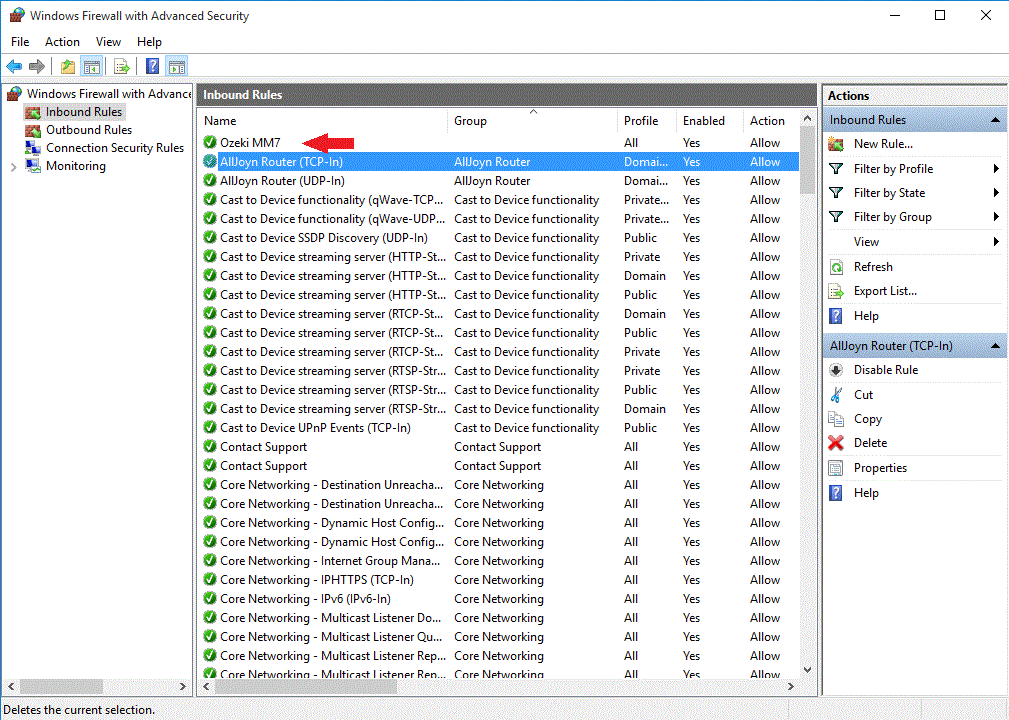
Finaly you can see your new rule in the list is the rules (Figure 10).
More information
- Firewall settings on Windows 7
- Firewall settings on Windows 8
- Receive MMS via MM7
- MMS types
- Send MMS via MM7
- HTTP Server connection
- HTTPs
- Send/Receive MMS via EAIF
- Receive MMS via MM7
- Service Provider Connections
- QuickStart Guide
- Graphical User Interface
- Load Balancing
- Load Balancing for SMPP v3.3
- Databaseuser
- FAQ