How to restore your licence from backup
This guide shows how to restore an Ozeki NG SMS Gateway licence from a previously created backup. You will reinstall the gateway, enter the saved Serial number and activation code, verify that the System ID matches the original system, and restart the service to complete activation.
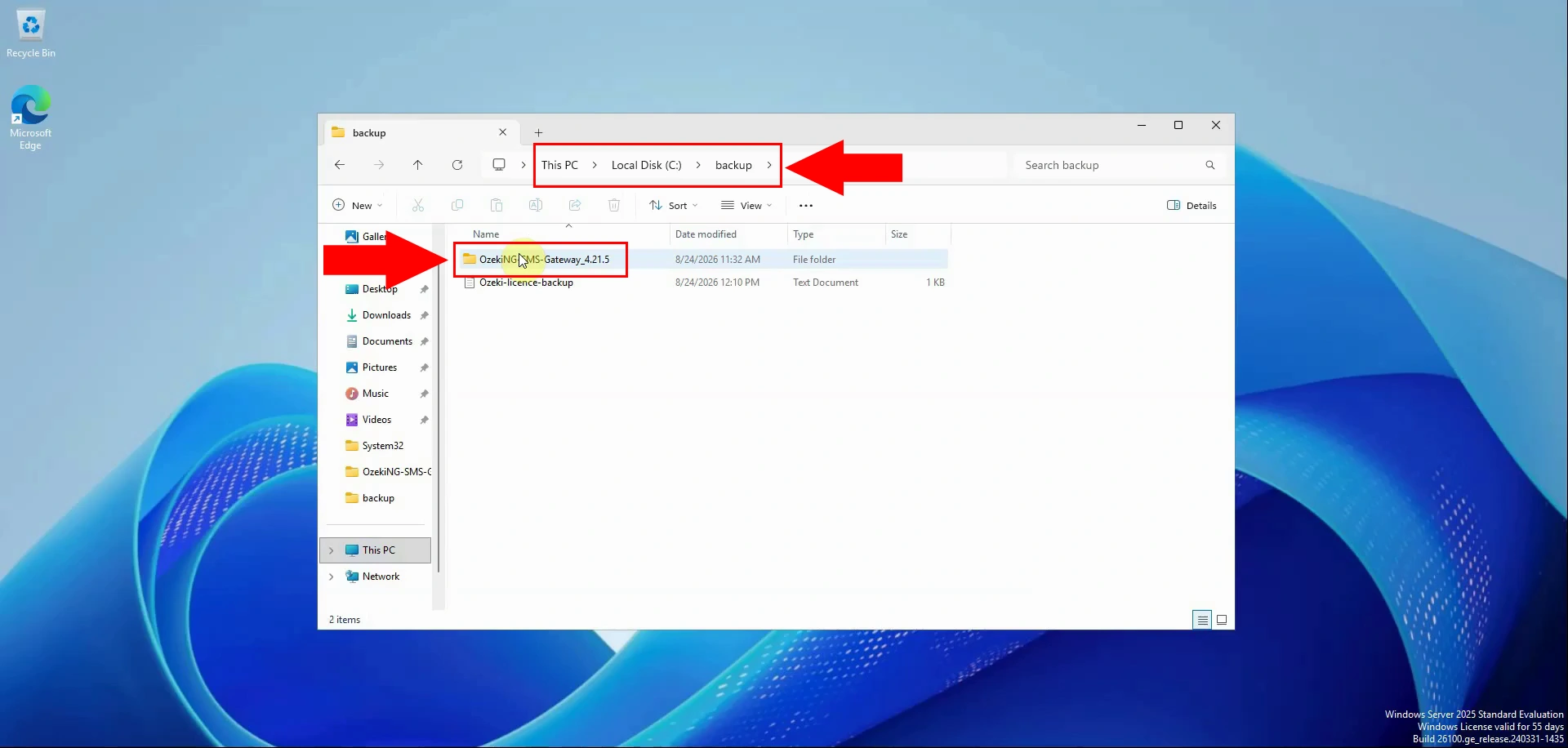
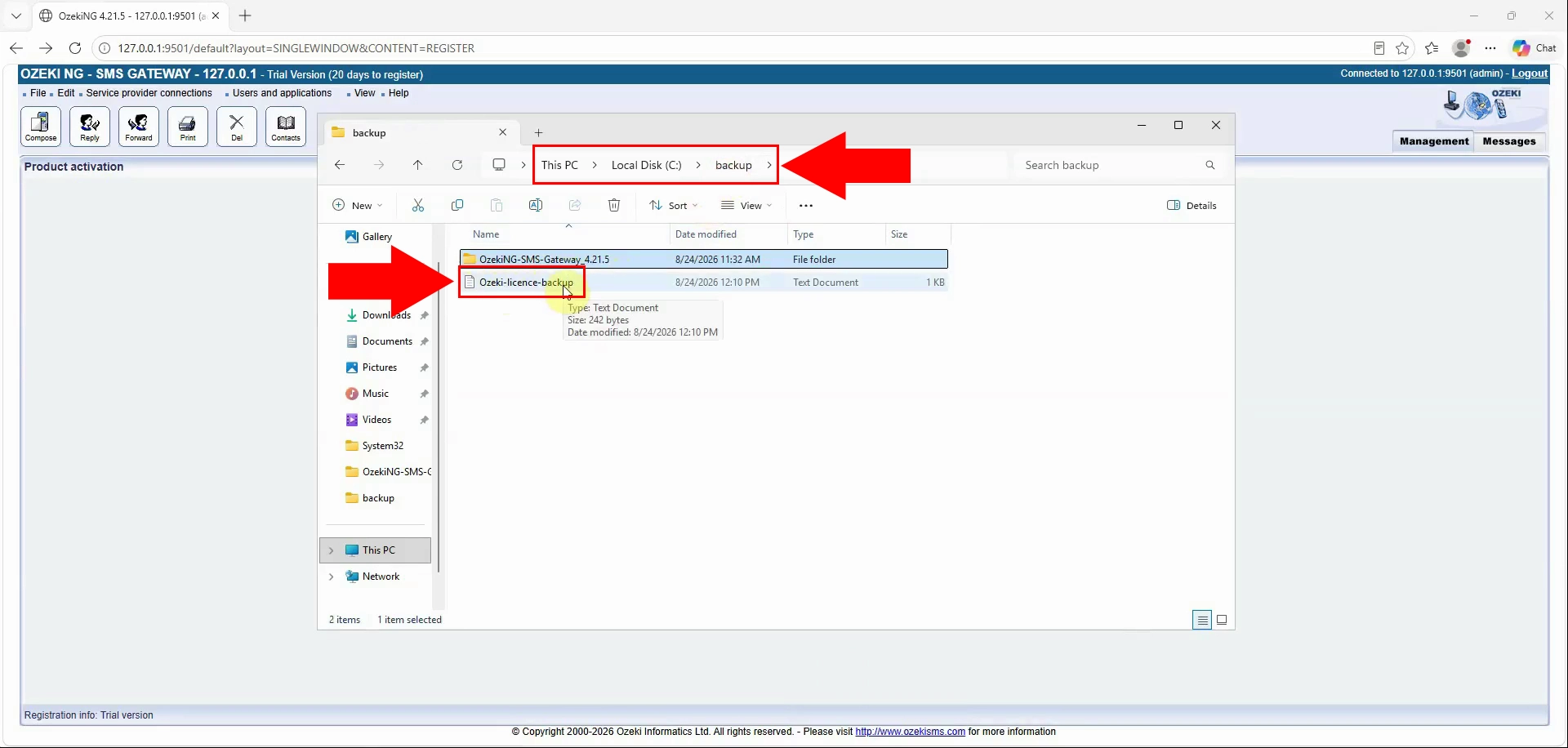
Open the folder containing the previously saved Ozeki NG SMS Gateway backup. Confirm that it includes both the installer and the text file containing the licence details. Keep this folder available throughout the restoration process.
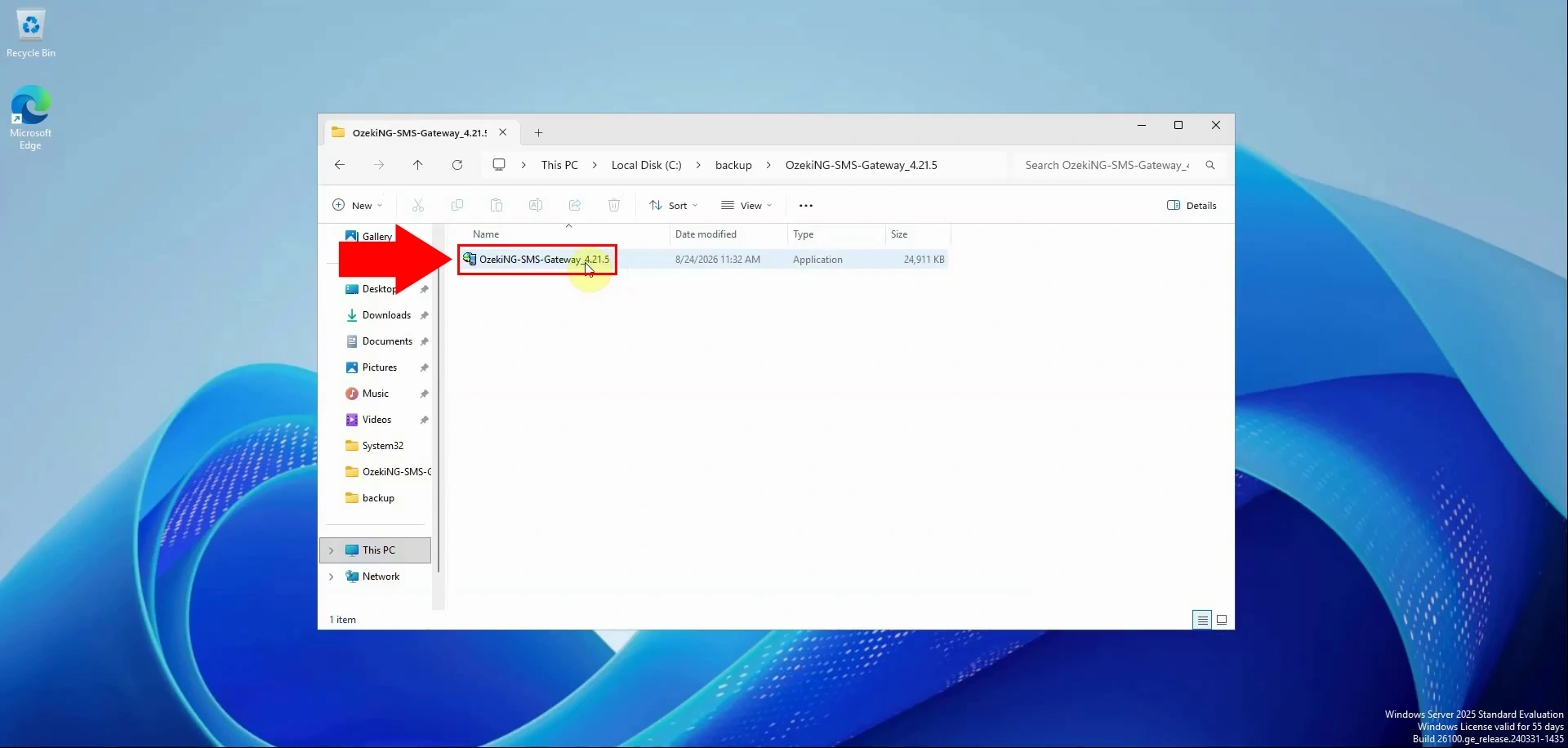
Run the Ozeki NG SMS Gateway installer stored in the backup folder. Follow the installation wizard to install the gateway on the replacement or rebuilt system. Use the backed-up installer to maintain compatibility with the saved licence data.
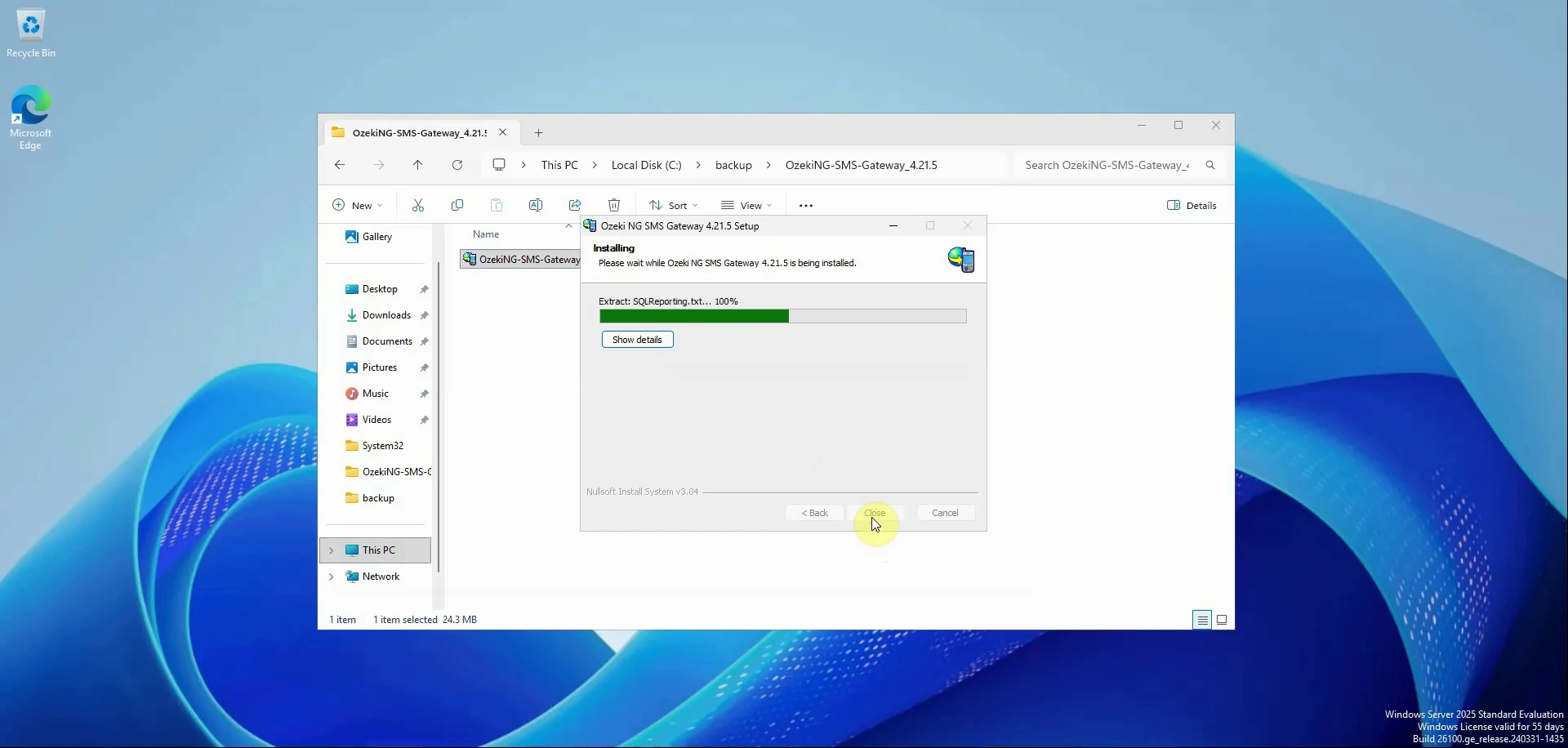
Wait while the Ozeki NG SMS Gateway installation process completes. Do not interrupt the installation or close the setup window before it finishes. When installation is complete, start the gateway to continue with activation.
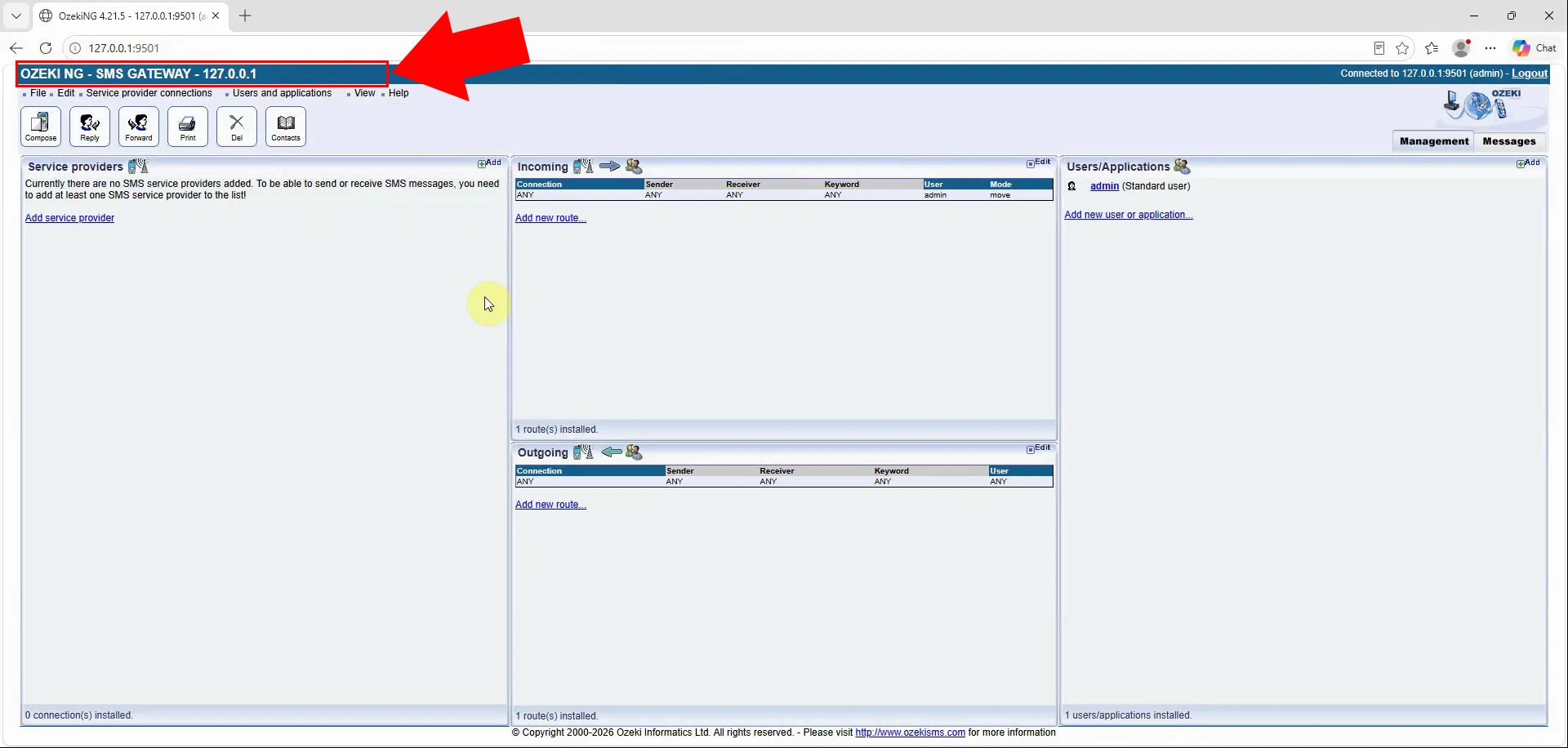
Start Ozeki NG SMS Gateway after installation. The software initially starts in Trial mode because the previous licence has not yet been restored. Open the web interface to enter the saved activation information.
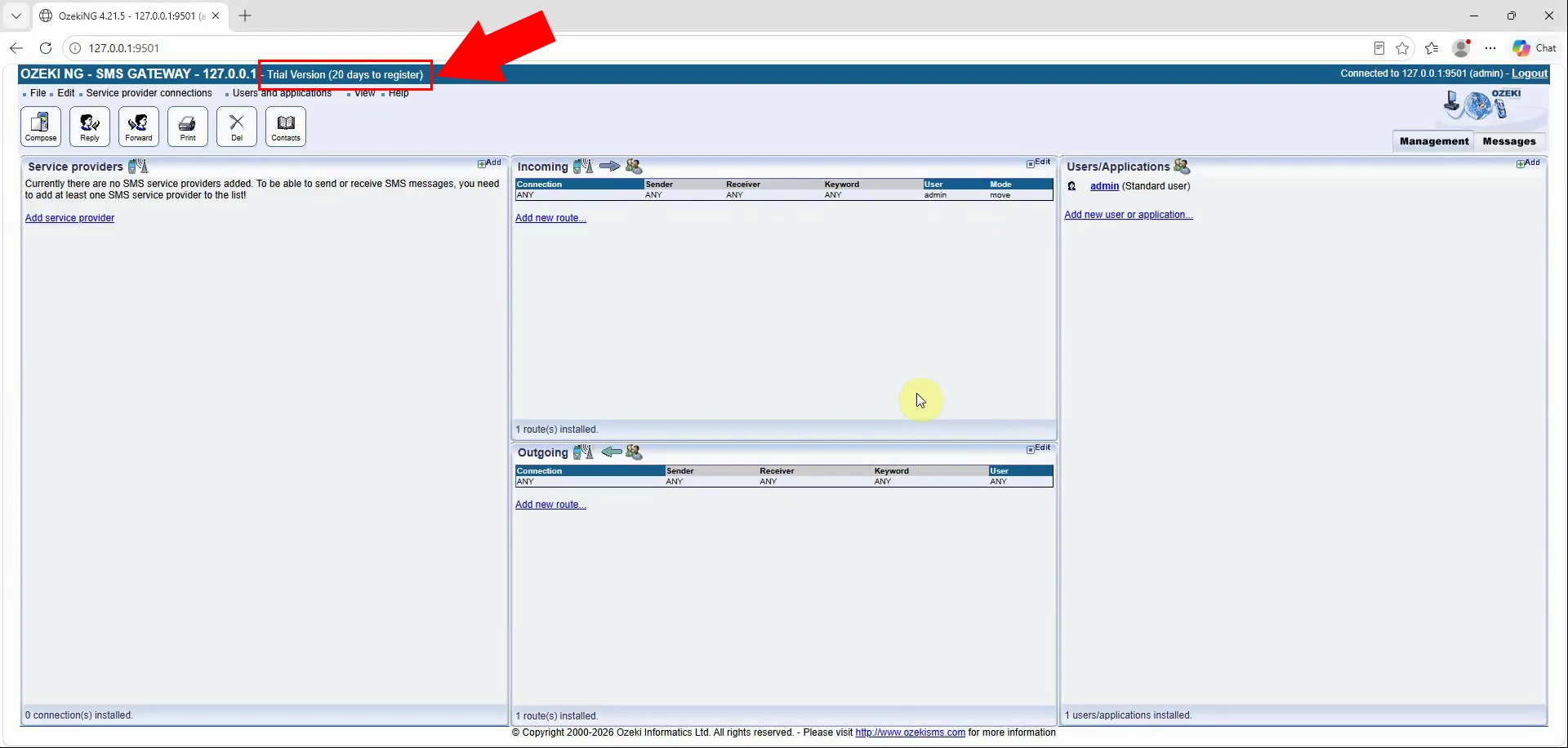
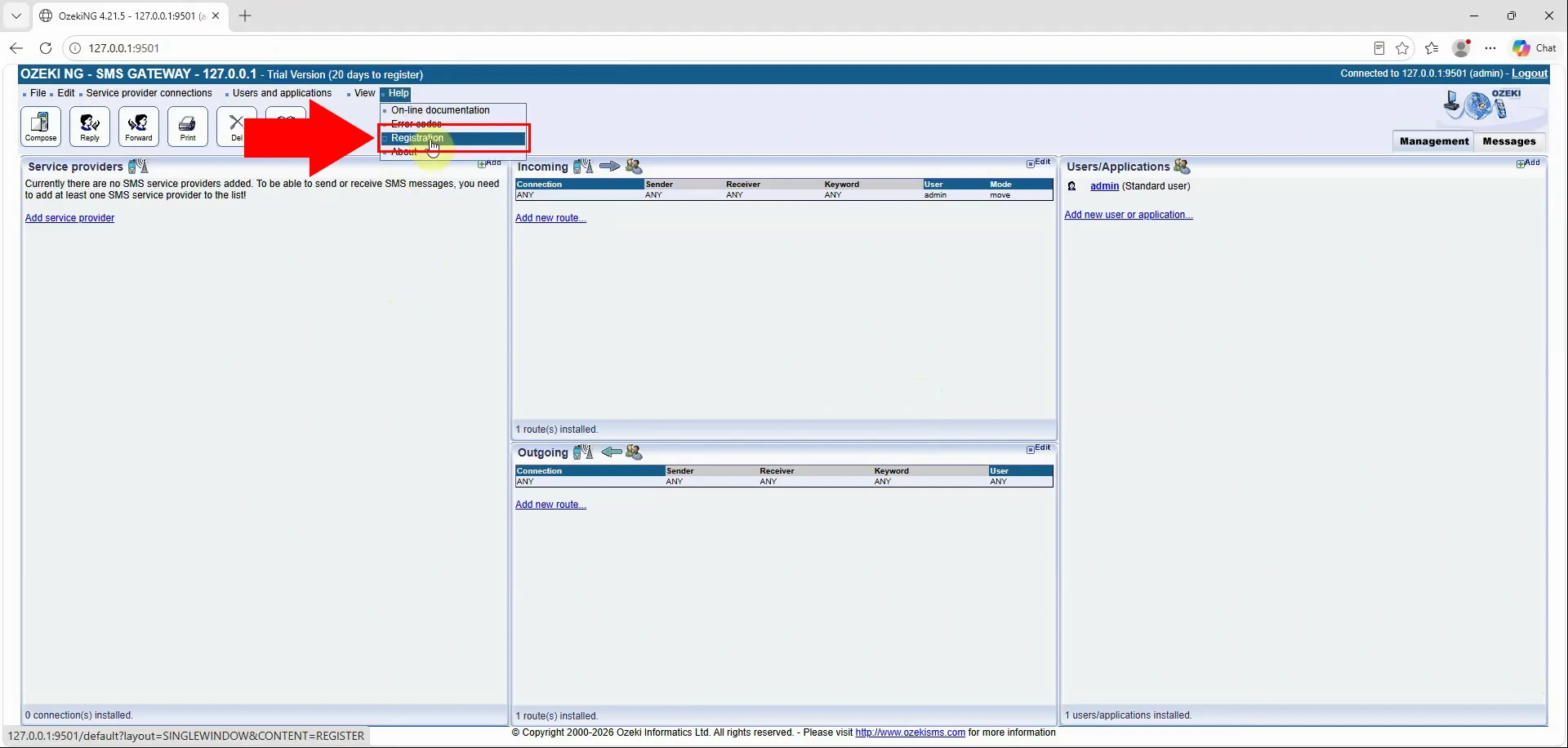
In the Ozeki NG SMS Gateway web interface, open the registration page. This page provides the fields required to restore the licence manually.
Open the licence-backup text file from your backup folder. Locate the saved Serial number, System ID, and activation code in the file. Use the exact original values, including all characters and formatting.
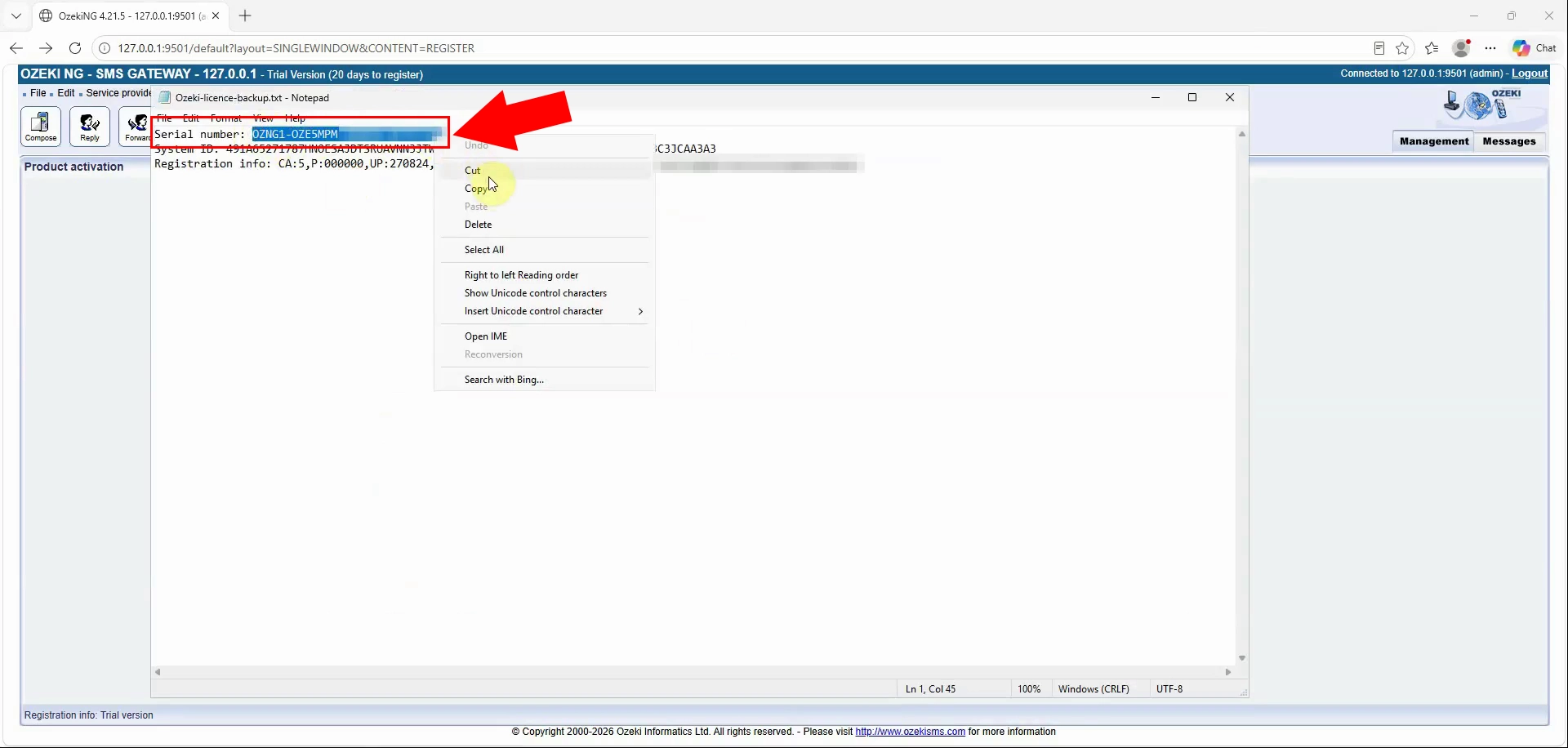
Copy the Serial number from the licence-backup text file. Ensure that the entire value is selected and that no leading or trailing spaces are included. This serial number identifies the licence that will be restored.
Paste the saved Serial number into the Serial number field on the registration page. Select Email activation to proceed with manual restoration of the existing licence. Verify the pasted serial number before continuing to the next step.
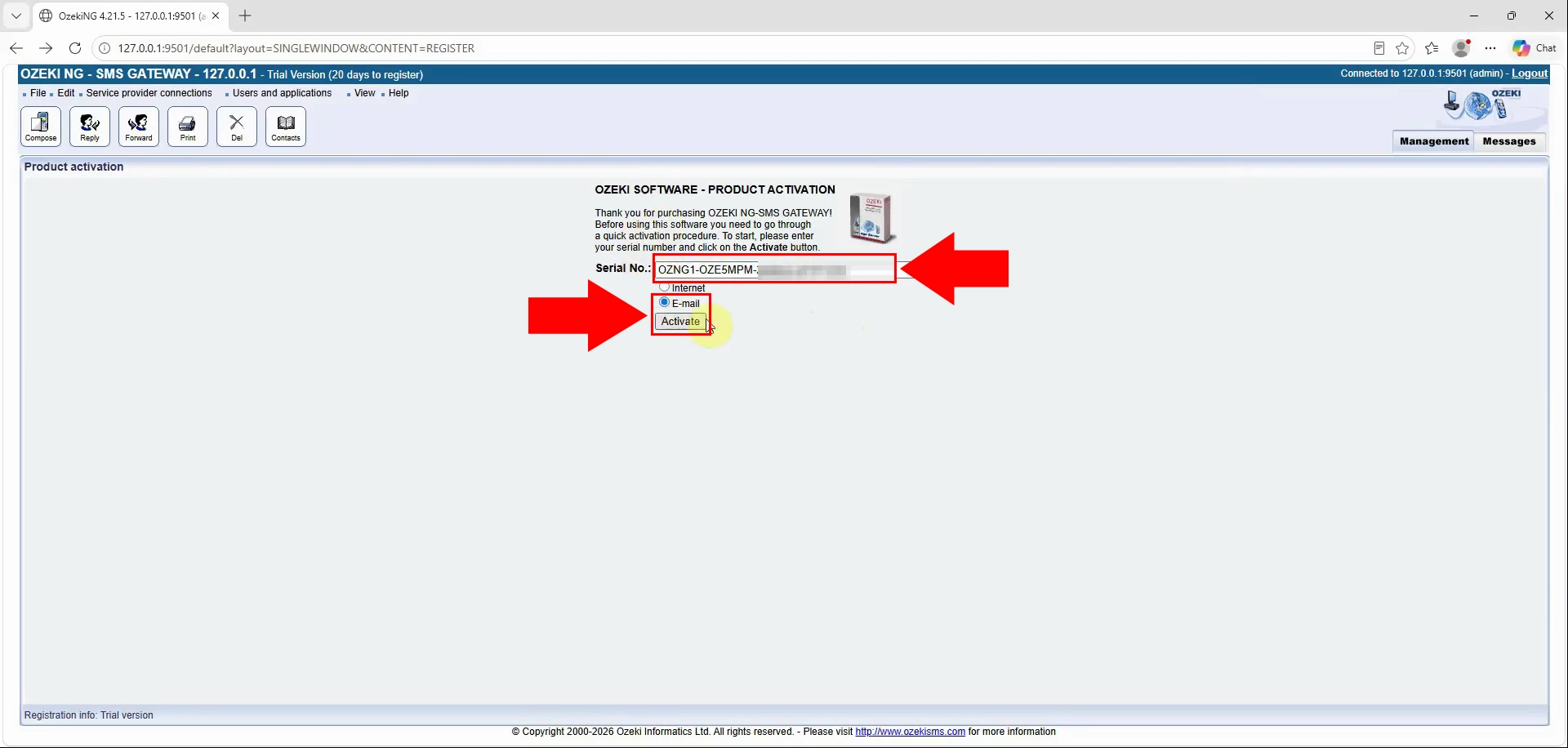
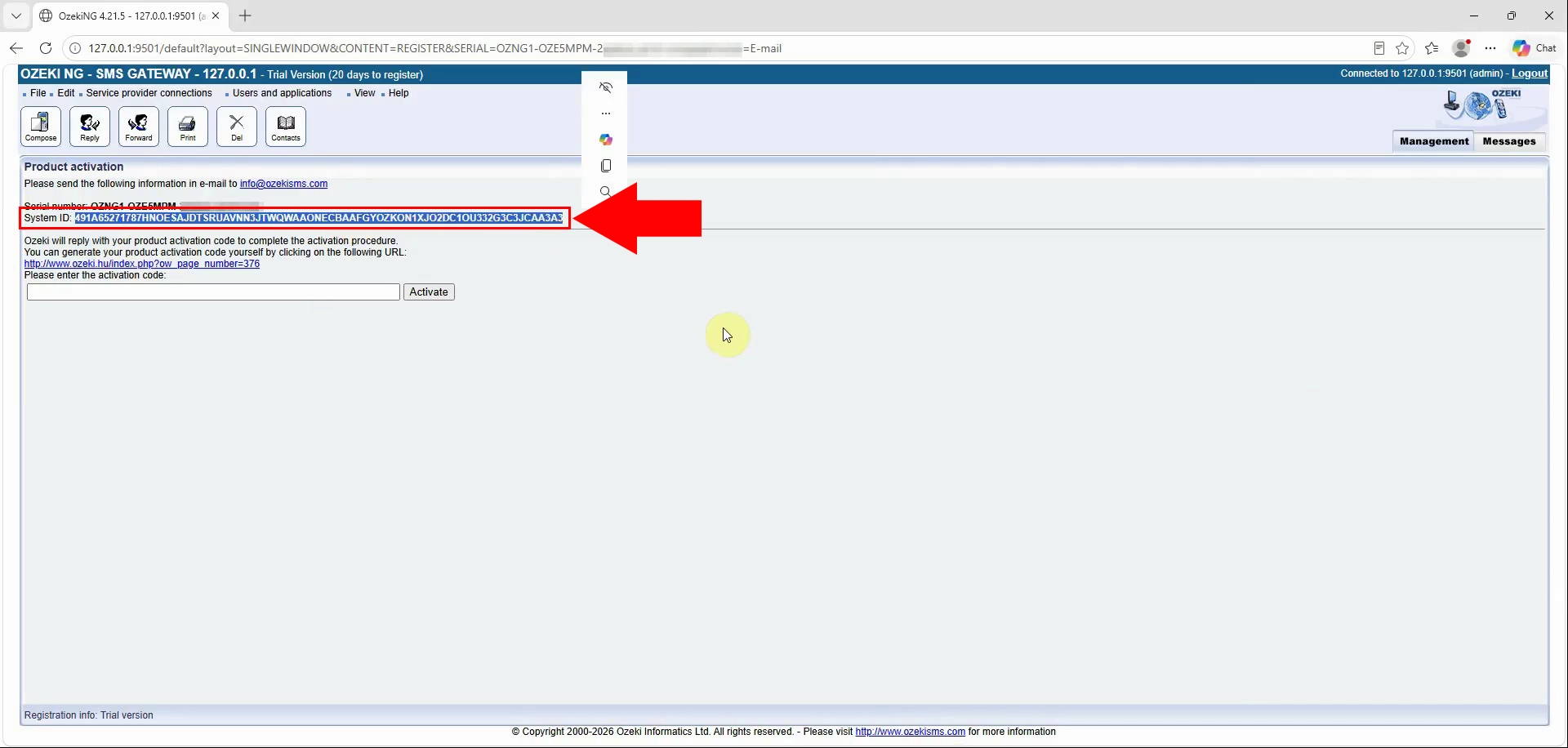
Compare the System ID displayed by Ozeki NG SMS Gateway with the System ID in the backup file. The System ID must be identical for the saved activation code to work. If the IDs differ, contact Ozeki support because the licence cannot be restored directly on this system.
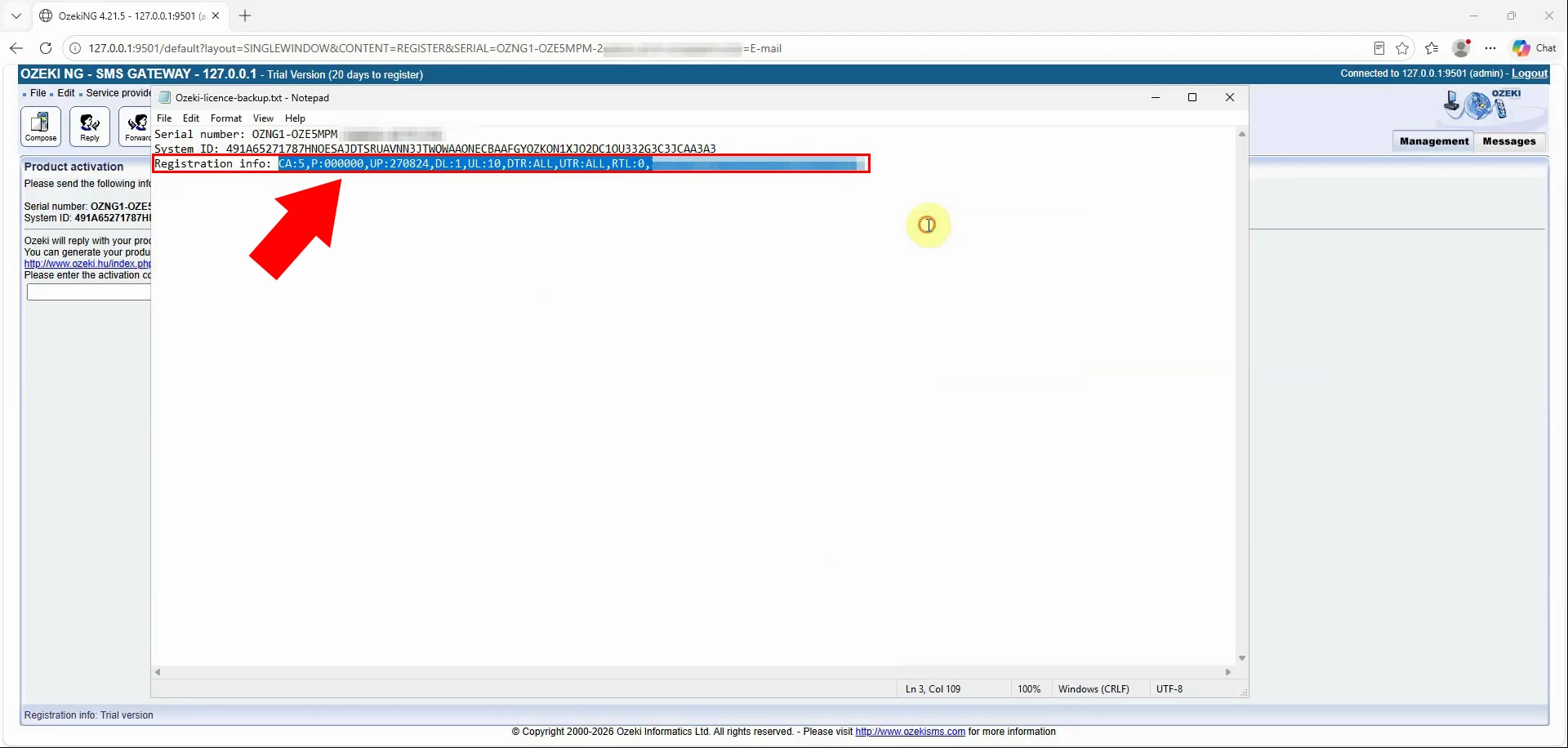
Copy the activation code from the licence-backup text file. Select the complete code carefully to avoid missing or changing any characters. Keep the registration page open and ready for the activation-code entry.
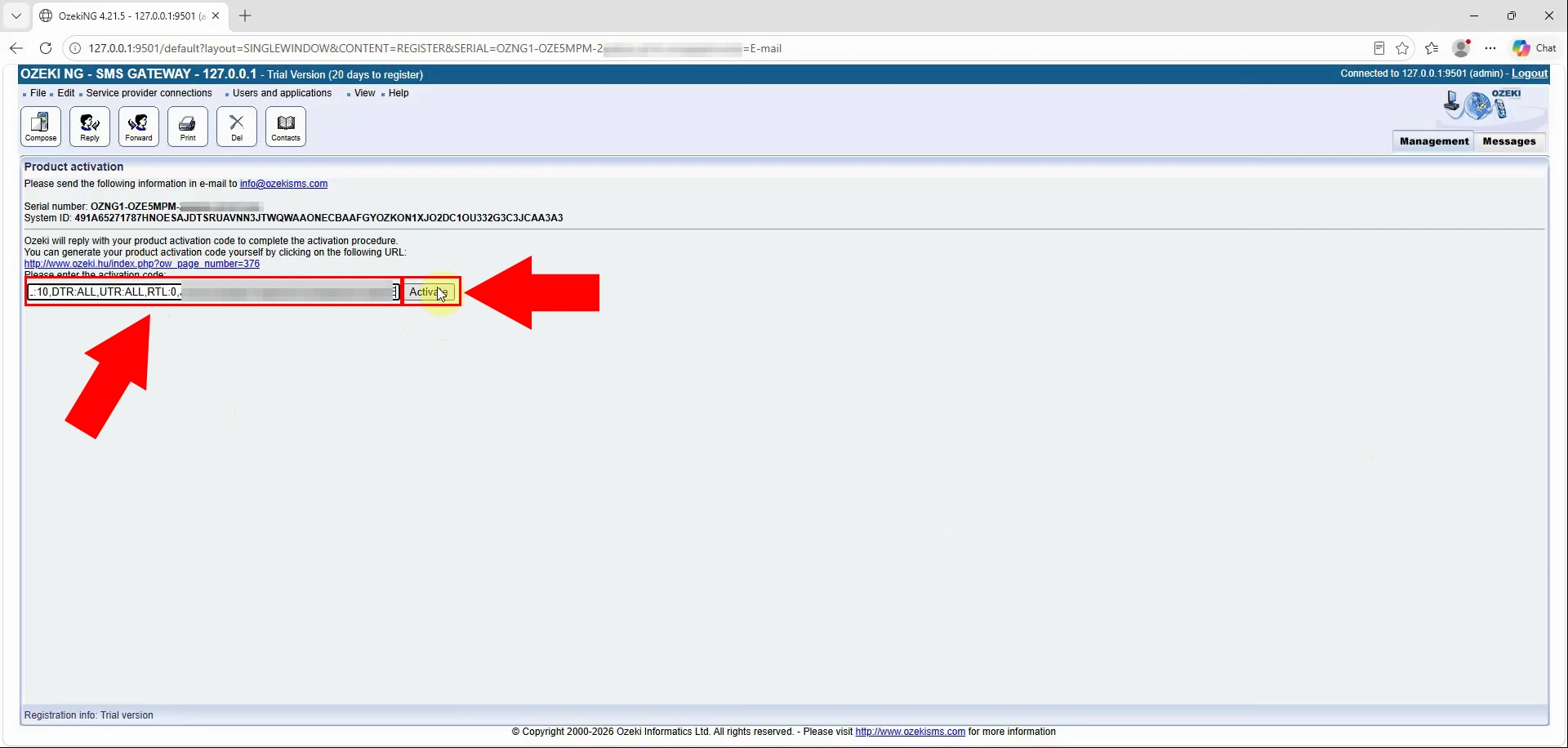
Paste the saved activation code into the activation-code field. Start the activation process to apply the backed-up licence to Ozeki NG SMS Gateway. Wait for the system to confirm whether activation was accepted.
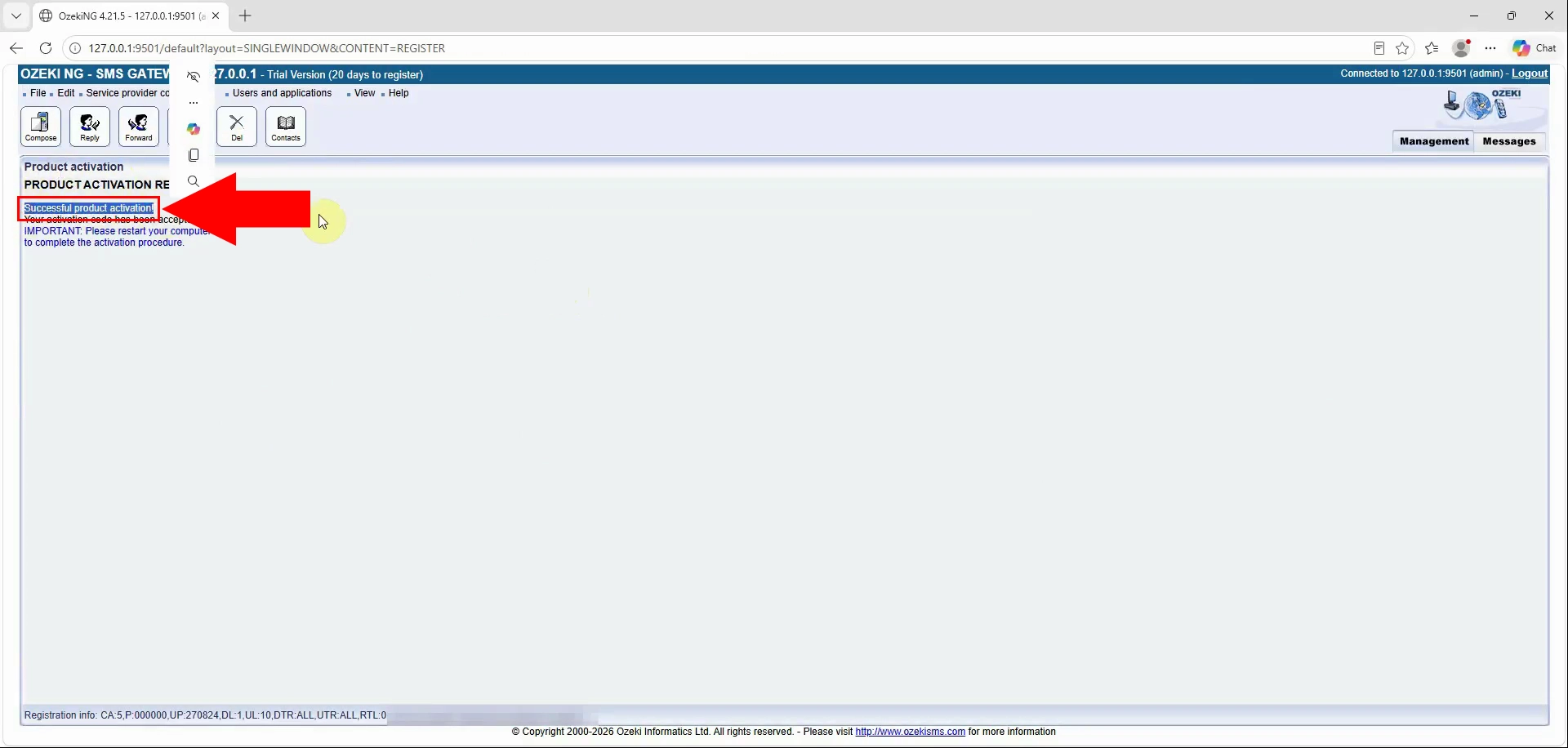
Check the confirmation message indicating that product activation was successful. This confirms that the Serial number, System ID, and activation code were accepted. The licence is now restored, but the Ozeki service must still be restarted.
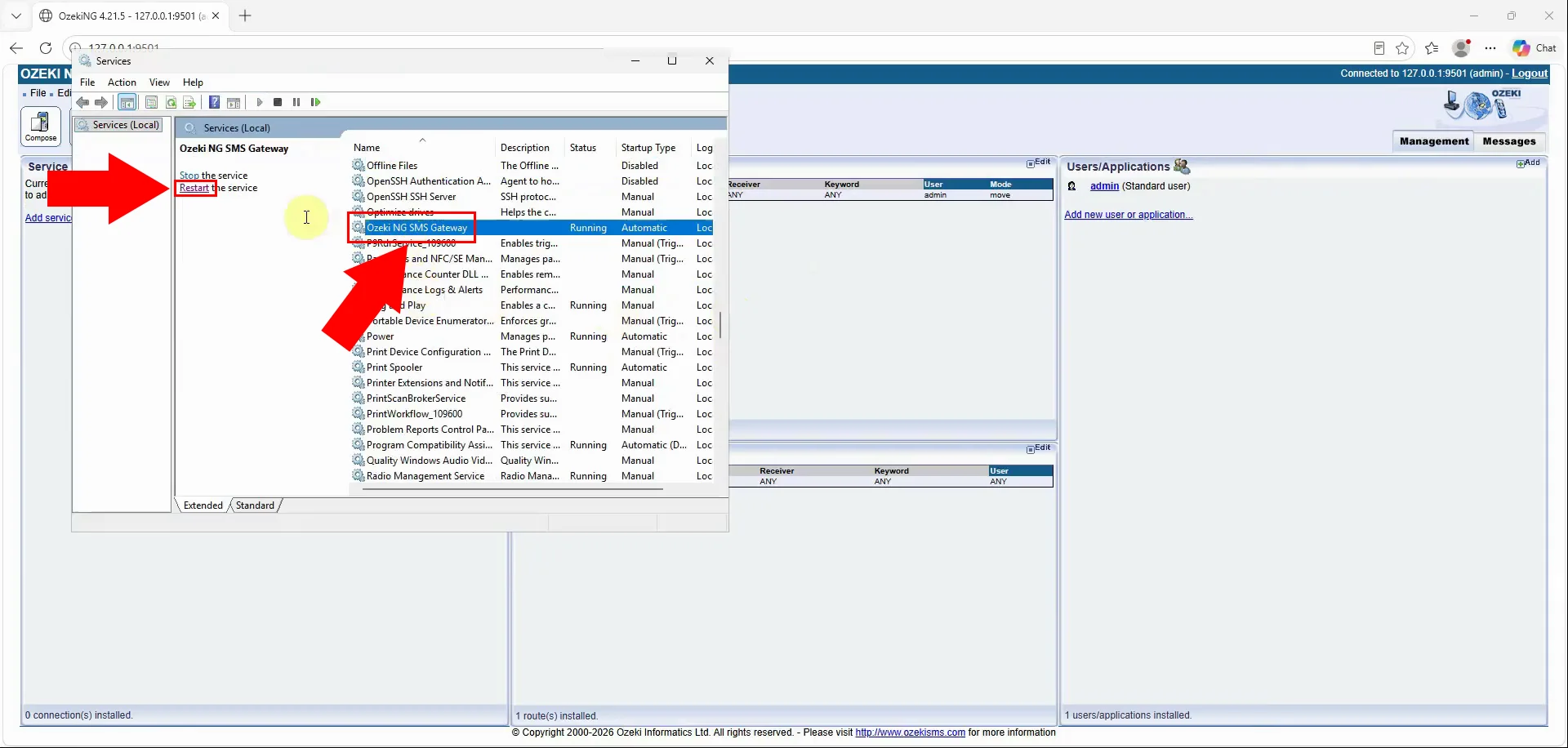
Restart the Ozeki NG SMS Gateway service to apply the restored licence fully. Use the Windows service-management tool to restart it. Wait until the service has stopped and started successfully before checking its status.
Confirm that Ozeki NG SMS Gateway now shows an activated status. The system should no longer run in Trial mode after the service restart. Your gateway is ready to resume normal SMS operations with the restored licence.